Customizing the GNOME desktop on Fedora
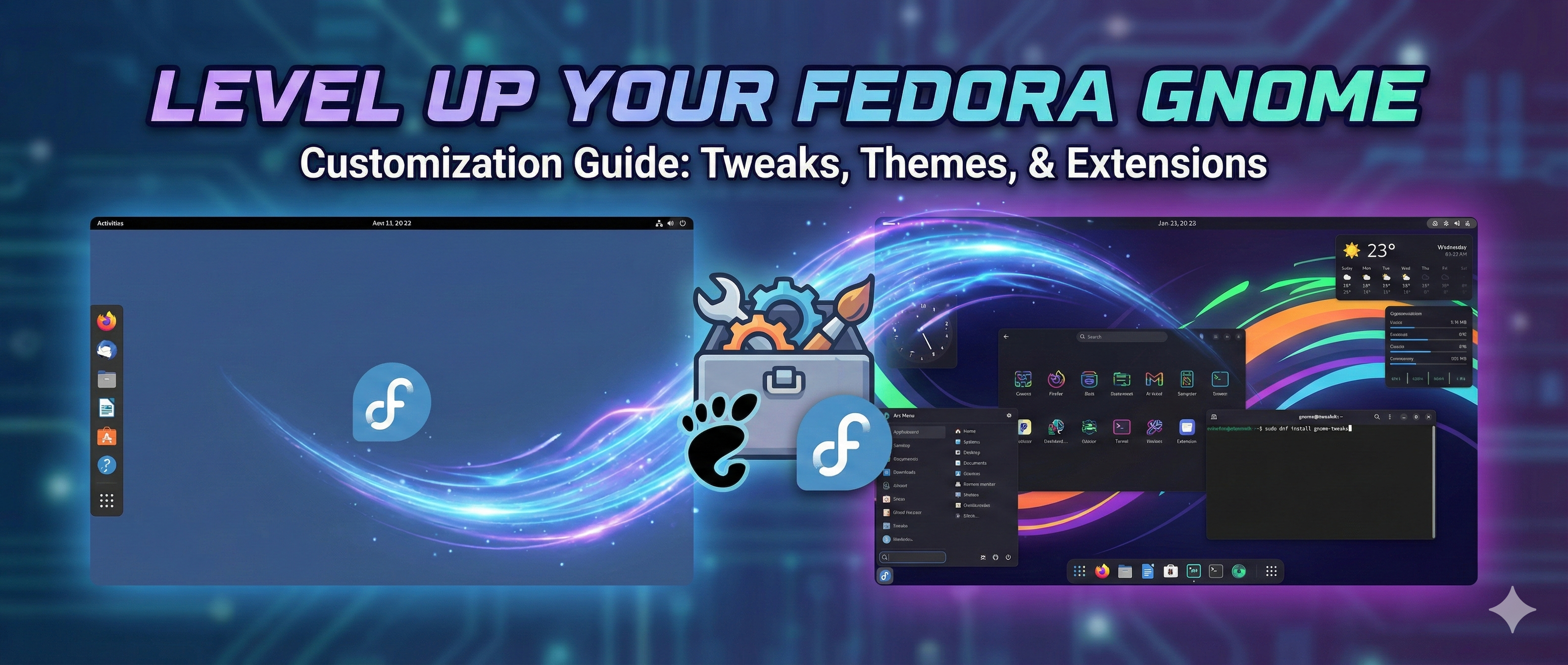
Level Up Your Fedora GNOME: Time to Customize!
Fedora is awesome, and GNOME is a rock-solid desktop environment. But let's be honest, sometimes the default look and feel just doesn't quite cut it. Want to inject some personality and make Fedora truly *yours*? You've come to the right place! Customizing GNOME is surprisingly easy, and this guide will walk you through some of the most popular tweaks.
Essential Tools: GNOME Tweaks and Extensions
Before we dive in, let's grab the tools we need. The star of the show is GNOME Tweaks, a utility that unlocks a whole new world of customization options. To install it, open your terminal and type:
sudo dnf install gnome-tweaks
Hit enter, type your password if prompted, and let Fedora handle the rest. Next, we need the "GNOME Shell integration" extension, which lets you manage extensions from your web browser. Just head to the GNOME Extensions website and follow the instructions (usually just clicking a toggle). You might need to install a browser extension, so follow the website's prompts carefully.
Spice Things Up: Themes and Icons
One of the most impactful changes you can make is swapping out the default theme and icons. There's a massive ecosystem of free themes and icon packs available online. A great place to start is GNOME-Look.org. Here's how to apply a new theme:
- Download the theme you want from GNOME-Look (usually a
.tar.gzor.zipfile). - Extract the archive to either
~/.themes(for just your user) or/usr/share/themes(for all users - requires sudo). If the.themesdirectory doesn't exist in your home directory, create it:mkdir ~/.themes - Open GNOME Tweaks.
- Navigate to "Appearance".
- Under "Themes", you'll now see your newly installed theme available to select for "Applications" and "Shell".
Applying icon themes is very similar. Download an icon pack, extract it to ~/.icons or /usr/share/icons, and then select it in the "Appearance" section of GNOME Tweaks under "Icons".
Extension Power: Supercharge Your Workflow
GNOME extensions are small, modular pieces of code that add functionality to your desktop. There are extensions for everything, from adding a weather widget to your top bar to completely overhauling the way your windows are managed. Here are a few popular extensions to get you started:
- Dash to Panel: Replaces the default dash with a traditional panel.
- Arc Menu: Provides a traditional application menu.
- Blur my Shell: Adds a blur effect to various UI elements.
- Caffeine: Prevents your computer from automatically sleeping.
You can browse and install extensions directly from the GNOME Extensions website after you've installed the GNOME Shell integration extension we mentioned earlier.
Fine-Tuning: Fonts, Windows, and More
GNOME Tweaks offers even more granular control. Explore the other settings to customize fonts, window button placement, startup applications, and more. For example, under the "Fonts" section, you can adjust the fonts used for different parts of the system.
Important Considerations
While customization is fun, keep these points in mind:
- Compatibility: Extensions aren't always compatible with every version of GNOME. If something breaks after installing an extension, try disabling it.
- Performance: Too many extensions can impact performance. Start with a few essentials and add more as needed.
- Backup: Before making major changes, it's always a good idea to back up your important data.
With a little experimentation, you can transform your Fedora GNOME desktop into a personalized powerhouse. Happy customizing!