Understanding the Linux File System
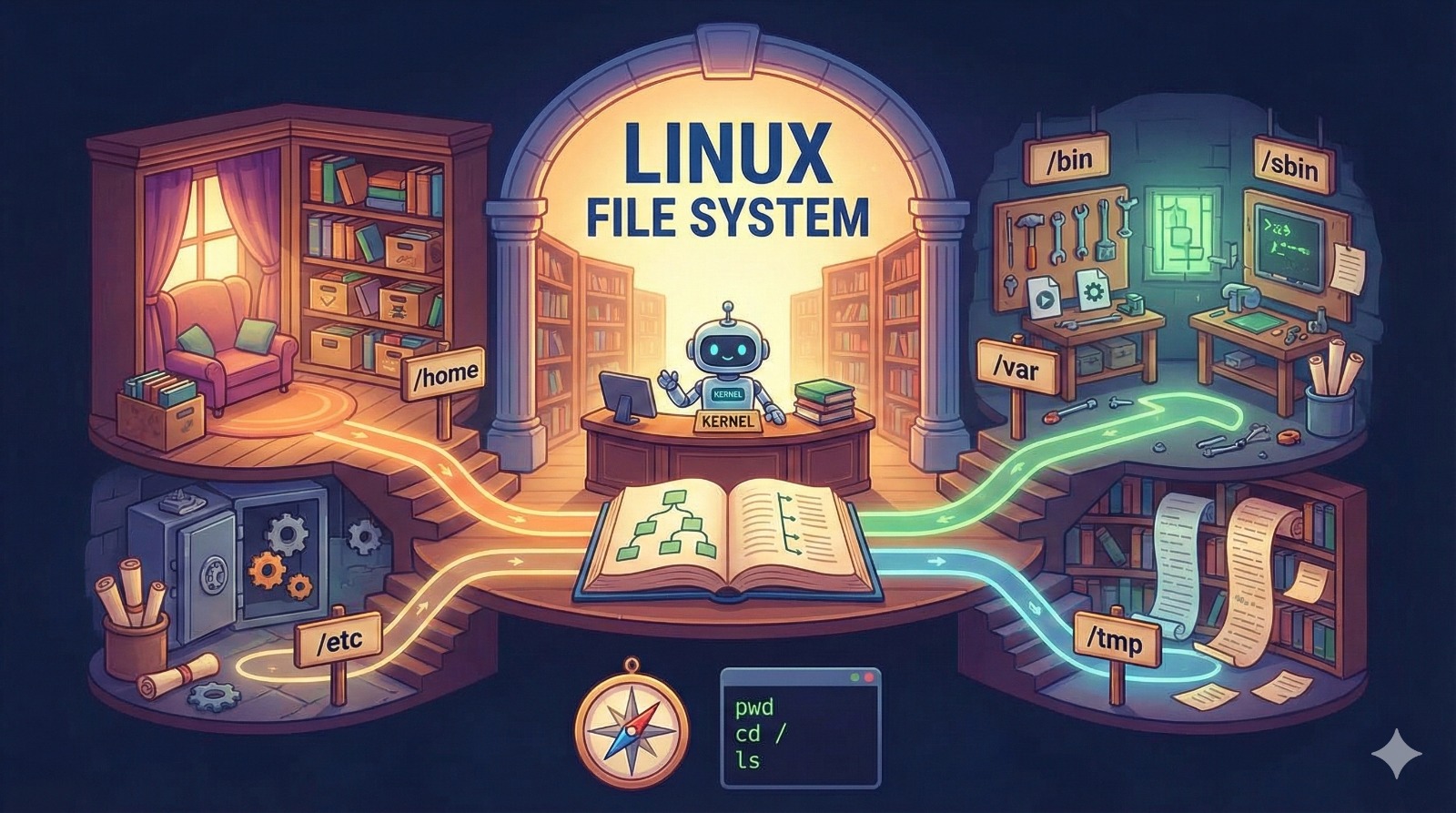
Hey everyone! Ever wondered how Linux keeps track of all your files and folders? It's all thanks to the magic of the Linux file system! Think of it like a super-organized library, but instead of books, we have files, and instead of librarians, we have the kernel (the heart of Linux).
What is a File System Anyway?
Simply put, a file system is the way an operating system organizes and manages files on a storage device (like your hard drive or SSD). It defines how data is stored, accessed, and named. Without a file system, your computer would just see a jumbled mess of bits and bytes!
The Root of It All: The Root Directory (/)
In Linux, everything starts with the root directory, denoted by a single forward slash (/). It's the top-level directory in the file system hierarchy. Think of it as the main index in our library analogy. From there, everything branches out.
Key Directories You Should Know
Under the root directory, you'll find a set of standard directories, each with a specific purpose. Here are some of the most important ones:
/bin: Essential user command binaries (programs). These are commands that any user can run./boot: Files needed to boot the system, like the kernel image and bootloader./dev: Device files. Linux treats hardware devices as files./etc: System-wide configuration files. This is where you'll find settings for your network, users, and more./home: Home directories for each user. This is where your personal files are stored. For example, your files would be under/home/yourusername./lib: Essential shared libraries needed by the programs in/binand/sbin./media: Mount point for removable media (like USB drives)./mnt: Temporary mount point for file systems./opt: Optional application software packages. Often used for software installed outside of the package manager./root: Home directory for the root user (the administrator)./sbin: System administration binaries (programs). These require root privileges to run./tmp: Temporary files. The contents of this directory are often deleted on reboot./usr: User programs, libraries, documentation, etc. Contains a large number of applications and utilities./var: Variable data. Files that change frequently, like logs and databases.
File System Types
Linux supports many different file system types. Each has its own strengths and weaknesses. Here are a few common ones:
ext4: The most common file system for Linux distributions. It's reliable and performs well.XFS: A high-performance file system often used for large storage arrays.btrfs: A modern file system with advanced features like snapshots and built-in RAID support.FAT32: A common file system for USB drives and SD cards. It's compatible with most operating systems.NTFS: The default file system for Windows. Linux can read and write to NTFS partitions, but it's not ideal for the root file system.
Navigating the File System
You can navigate the Linux file system using the command line. Here are a few basic commands:
pwd: Print working directory. Shows you the current directory you are in.cd: Change directory. Use this to move around the file system. For example,cd /home/yourusernamewill take you to your home directory.ls: List directory contents. Shows you the files and directories in the current directory.
Understanding the Linux file system is crucial for anyone working with Linux. It gives you a solid foundation for managing files, troubleshooting problems, and customizing your system. Happy exploring!